Fix Listing Before Black Friday
🎁 Shoppers leave over unanswered questions, plus how to create editable mockups with AI

Hello Readers 🥰
Welcome to today's edition, bringing the latest growth stories fresh to your inbox.
If your pal sent this to you, then subscribe to be the savviest marketer in the room😉
In Partnership with Insense
1 UGC creator = 20+ ad variations to scale your Q4 creatives
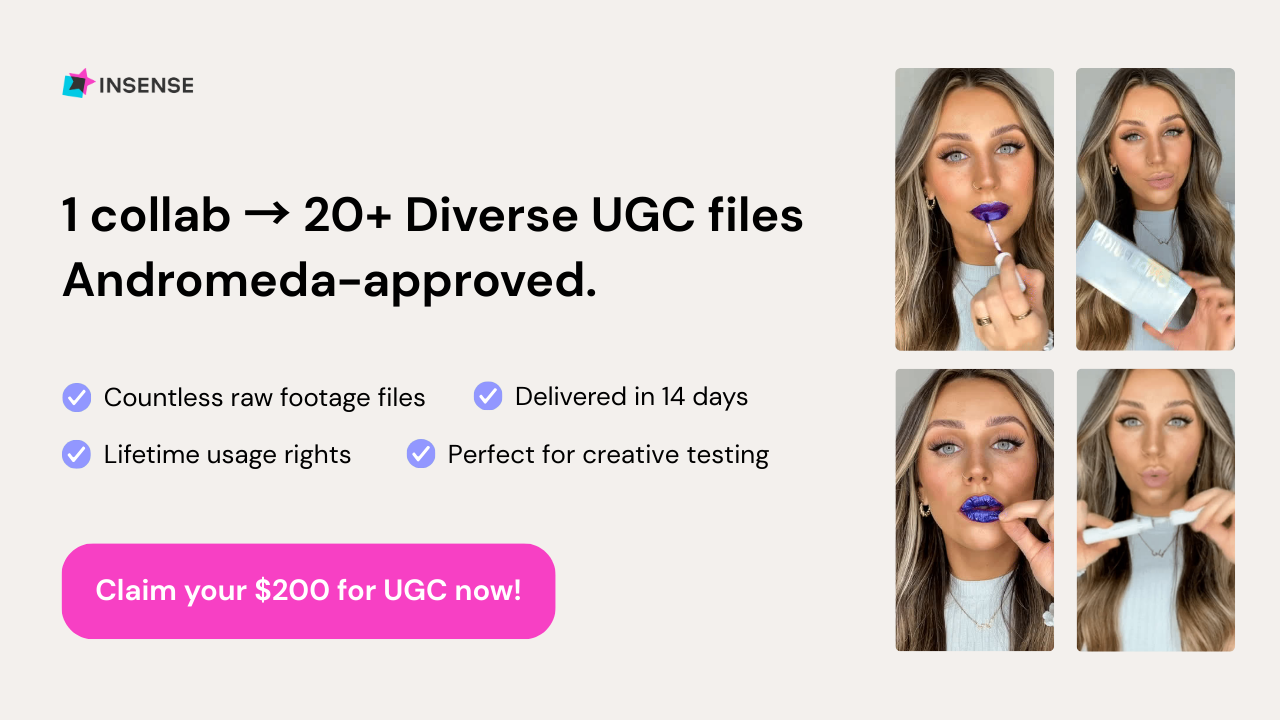
Insense makes UGC ads insanely cost-effective - and Andromeda-approved!
Meta's Andromeda update now rewards creative diversity (+22% ROAS), so the more distinct hooks and angles you test, the better you rank.
From one brief, get numerous raw footage clips to mix, match, and turn into multiple scroll-stopping creatives for your paid social ads.
Source 20+ pieces of raw content (per creator) with lifetime usage rights, all delivered in 14 days or less.
Here's the BFCM math: one winning ad takes 10-13 tested creatives, so 20+ variations per creator means more shots at a winner, and instant hook-swaps when an ad fatigues during BFCM week. Many versions from one shoot, not 50 shoots.
That’s how over 3,500 brands like Beauty Pie, Il Makiage, Revolut, and Monster Energy scale UGC without killing team bandwidth.
Cost-effective UGC with lifetime usage rights? Yes please!!
Book a free strategy call by November 6th and get $200 toward your first campaign
📦 Give Your Product Listing a Holiday Sales Checkup
Black Friday is just one month away. Before you increase ad spend, look at what shoppers actually see when they land on your product page. Unanswered questions about sizing, compatibility, or benefits could be quietly costing you sales. Here’s a simple, step-by-step guide to get your listing ready.
Steps to Prepare Your Listing for the Holiday Rush:
1️⃣ Let Customer Feedback Guide You
Your buyers are already telling you what’s missing. Go through reviews, product Q&As, and recurring comments to spot repeated concerns. Are shoppers confused about sizing, unsure how a feature works, or missing a key detail? Don’t guess when the clues are right in front of you.
2️⃣ Fix One Friction Point at a Time
Once you find a common sticking point, refresh your listing with a targeted image. Use visuals to clarify sizing or compatibility, show the product in action, or highlight an overlooked benefit. For products that need more explanation, enhanced brand content works well. Keep it focused so shoppers find the answer in seconds.
3️⃣ Think Like a Gift Buyer
Review your listing through the eyes of someone shopping for a present. Can they tell who it suits, what’s included, and whether accessories are needed? Show the full set, explain compatibility, and highlight gift-ready packaging. Make sure your creative matches the exact product or bundle customers will receive.
4️⃣ Measure the Impact
Use built-in testing tools on eligible listings, or compare performance metrics before and after your update. Track conversion-related numbers, and remember that pricing, promotions, inventory, traffic, and seasonal demand can all affect results. A clear test with a measurable outcome beats changing an image and hoping for the best.
The Takeaway
Small listing improvements can make a big difference during peak season. Answering shopper questions before they ask them builds confidence and drives purchases.
📦 Make Editable Product Mockups with GPT-6.1 Terra
Need a polished product mockup without starting from scratch every time a client asks for changes? GPT-6.1 Terra makes it simple by building your design directly in Blender. Whether for packaging, campaigns, or client presentations, you can create flexible visuals that stay fully editable.
Steps to Create Product Mockups Using GPT-6.1 Terra:
1️⃣ Set Up Your Project
Save an empty Blender project and connect Terra through the Computer Use plugin in ChatGPT Work. Keep its access limited to your practice project for safety.
2️⃣ Build the Product
Give Terra the carton dimensions and colors from the guide. Check that the size looks right, then add the product name and label as editable text so changes stay easy.
3️⃣ Add Camera and Lighting
Place a camera and studio lights, then render a small preview. Confirm that the lettering is readable, the edges look clean, and the carton sits properly on the ground.
4️⃣ Create Color Options and a Campaign Image
Copy the scene to make a second color option. Then build a wide version with the product on the right and open space on the left for a headline.
5️⃣ Export and Verify
Export all three images and reopen the saved Blender file. Check the image sizes and confirm you can still edit the text and product colors.
The Takeaway
GPT-6.1 Terra turns product mockups into a flexible, repeatable process. By saving your scene in Blender, you can handle client revisions quickly without rebuilding from the beginning.
We'd love to hear your feedback on today's issue! Simply reply to this email and share your thoughts on how we can improve our content and format.
Have a great day, and we'll be back again with more such content 😍