The Psychology Behind No Change
🎯 The hidden bias stopping purchases, plus an efficient ChatGPT Canva process

Hello Readers 🥰
Welcome to today's edition, bringing the latest growth stories fresh to your inbox.
If your pal sent this to you, then subscribe to be the savviest marketer in the room😉
In Partnership with Galactic Fed
This 20-minute growth session could save you millions.

Looking for growth answers in all the wrong places?
Now's your chance to meet 1:1 with Galactic Fed's advisors. They will understand your business, audit your channels, and show you where the fastest growth opportunities are hiding.
Their team’s data comes from managing millions in ad spend across 600+ brands like Quiznos, Varo, and Edible. They'll apply all that insight to your marketing.
It’s free, it’s personalized, and it’s the same process that’s helped clients get funded, acquired, and go from startup to standout.
🧠 The Region Beta Paradox Explained
Most people think big pain causes bigger damage. Psychology suggests the opposite can happen. When discomfort is intense, we react fast and recover quickly. When it is only mildly annoying, we often tolerate it and stay stuck.
This effect is called the Region Beta Paradox. It explains why people sometimes recover more quickly from major setbacks than from minor frustrations. When pain crosses a threshold, it triggers coping and action. But when it stays just below that threshold, it lingers and quietly drains attention.
That is exactly why buyers ignore mild problems. They can live with them. Until you help them feel what the status quo is really costing.
Steps to Use the Region Beta Paradox in Copy:
1️⃣ Find the Tolerated Pain
Identify the low-grade frustration your customer has normalized. The kind they complain about but never fix. This is where indecision lives.
2️⃣ Reveal the Hidden Cost
Make the invisible damage visible. Add up the time lost, money wasted, stress built up, or missed outcomes. The goal is to show that staying put is not neutral. It is expensive.
3️⃣ Turn Mild Discomfort Into Urgency
Raise the emotional temperature without exaggeration. Show why the common experience should not feel common. People move when the problem feels unacceptable, not when it feels inconvenient.
4️⃣ Make Switching Feel Like Relief
Once the pain is clear, reduce fear around change. Explain the next step simply. Position the new choice as the fastest path to relief, not a risky leap.
5️⃣ Use Concrete Scenes
Translate abstract harm into vivid moments. Make the buyer picture the annoyance happening again and again. Specificity creates intensity.
The Takeaway
People do not change when they see the light. They change when they feel the heat. Your job is to surface the tolerated pain, show why it is quietly harmful, and make the alternative feel like immediate relief.
🎨 Create LinkedIn Carousels in ChatGPT With Canva
LinkedIn carousels are one of the easiest ways to earn attention, saves, and shares. The problem is speed. Writing the slides takes time, designing them takes longer, and keeping everything consistent is a headache.
This workflow solves that by letting you draft the carousel and generate the design in one place. You write the content in ChatGPT, refine it in Canvas, then hand it to Canva through the integration so you get polished slides without starting from scratch.
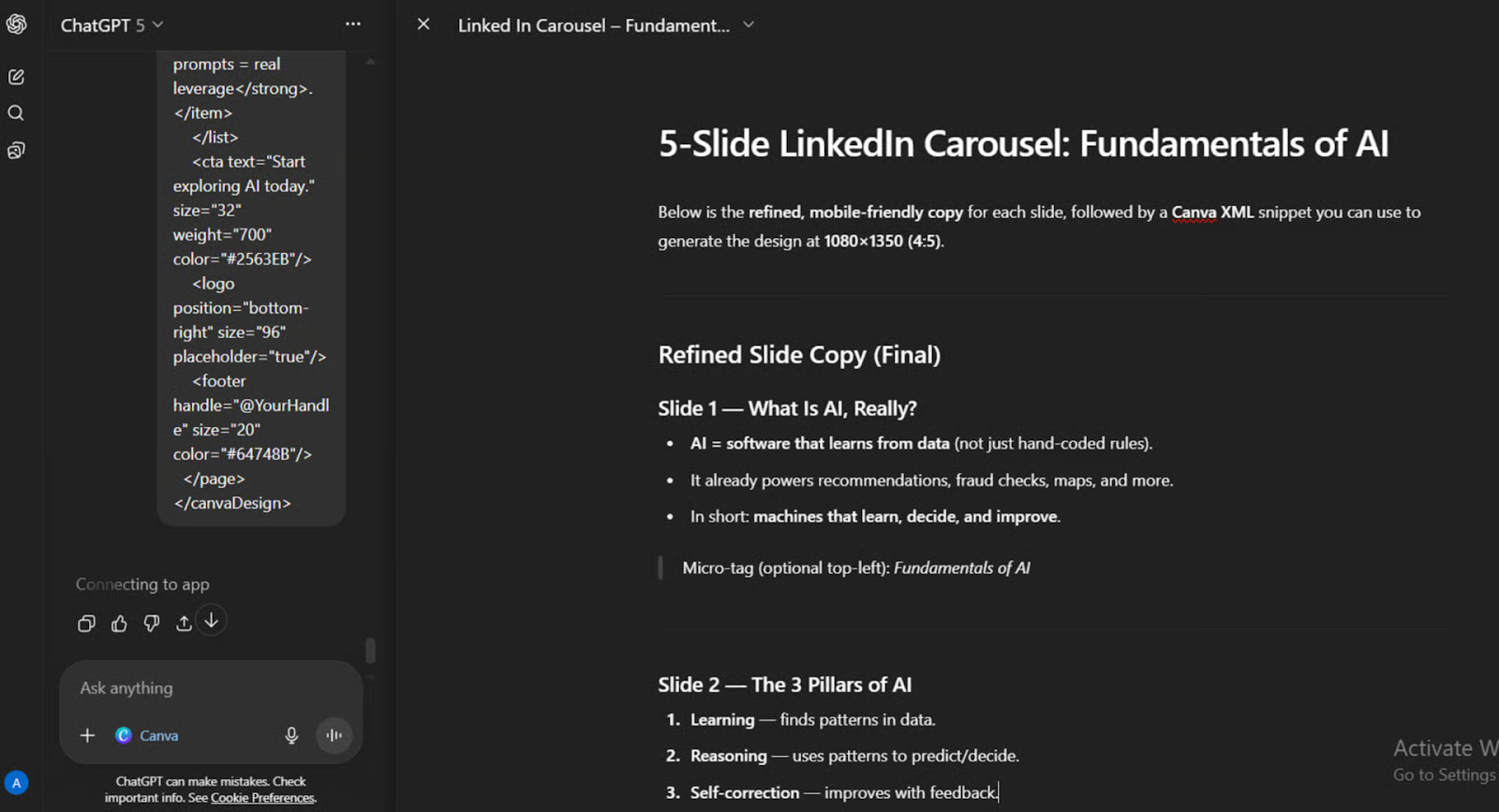
Steps to Create a LinkedIn Carousel Using ChatGPT and Canva:
1️⃣ Open Canvas and Draft the Slides
Start a new chat in ChatGPT. Click the plus button and select Canvas. Then prompt: “Write a 5-slide LinkedIn carousel on [your topic]. Slide 1: a hook. Slides 2 to 4, one tip each. Slide 5: a CTA. Keep each under 40 words.” This gives you a tight structure that works well for LinkedIn readers.
2️⃣ Refine the Copy in Canvas
Edit the slides directly in Canvas. Make the hook sharper, simplify each tip, and ensure every slide can be understood in five seconds. Keep your language consistent and remove filler.
3️⃣ Generate the Design Using Canva
Activate Canva with a prompt like: “Canva create a 5-slide LinkedIn carousel using this content [paste slides]. Use a detailed style description. Stick to the copy exactly.” Be specific about the style so the design matches your brand.
4️⃣ Preview and Choose a Layout
ChatGPT will generate multiple design options. Preview them, pick the strongest layout, then open the Canva link to access the editable version.
5️⃣ Finalize and Export for LinkedInIn
Canva, review each slide for spacing and readability. Make final tweaks, then download as PDF for LinkedIn documents or PNG for individual slides.
The Takeaway
The fastest way to publish more carousels is to standardize your structure and reuse your brand styling. Once you define your colors and fonts, you can produce consistent carousels in minutes instead of hours.
We'd love to hear your feedback on today's issue! Simply reply to this email and share your thoughts on how we can improve our content and format.
Have a great day, and we'll be back again with more such content 😍