Boost signups with fun interactions
🎯 Increase conversions with playful pop-ups and see Claude create workflows instantly

Hello Readers 🥰
Welcome to today's edition, bringing the latest growth stories fresh to your inbox.
If your pal sent this to you, then subscribe to be the savviest marketer in the room😉
In Partnership with Cloudways
Tired of Slow Hosting? Your BFCM Scaling Secret is Here.

Stop letting frustrating server management and unreliable performance sabotage your agency or freelance projects.
Cloudways is a managed cloud hosting platform designed for marketers, freelancers, and agencies that need to scale effortlessly. They handle the complex stuff. Built for serious performance and backed by 24/7 expert support.
Cloudways handles everything from lightning-fast page loading to complex server maintenance, letting you focus on what matters most: landing clients and launching winning campaigns.
The Deal is Simple: Get 50% OFF for 3 Months plus 50 Free Migrations. Whether you're running PHP, WordPress, Magento, or Laravel, their smallest server starts at just $7!
Use Coupon Code: BFCM5050
Click to Claim Your Deal Before It’s Gone!
📝 Gamify Pop Ups for Higher Conversions
Pop-ups often feel intrusive, but when designed with intention, they become powerful lead-generation tools that blend engagement, education, and incentive clarity. By adding gamified elements and guiding users through micro-interactions, you can dramatically increase sign-ups during peak shopping seasons. Here’s a breakdown of how a high-performing pop-up structure works.
Steps to Build a High-Converting Pop-Up:
1️⃣ Lead with Clear, Immediate Value:
Start by stating the incentive upfront. Instead of vague promises, show the exact reward, such as “Get 10 off instantly.” This reduces friction and makes the offer tangible. Positioning it as a “special” or “exclusive” reward also triggers perceived uniqueness.
2️⃣ Add a Fun, Gamified Interaction:
Replace simple email fields with a quick question or micro quiz. This moment of interaction increases engagement, feels playful, and warms the user up before asking for their information. Gamification creates a feeling of participation instead of interruption.
3️⃣ Educate the Shopper Through the Quiz:
Structure your quiz options to highlight use cases or product benefits. This doubles as subtle education, helping shoppers understand the range or versatility of your products before they even opt in. It’s marketing disguised as interaction.
4️⃣ Use Visual Reinforcement:
Pair the quiz with product imagery that connects to the answers. Visual linking strengthens recall, helps shoppers understand product differences, and makes the pop-up feel more cohesive and intentional.
5️⃣ Use Loss Aversion in the Opt Out:
A copy like “I don’t want my discount” nudges users to reconsider closing the pop-up. Loss aversion is a proven psychological trigger that increases conversions with minimal effort.
The Takeaway
A gamified, value-forward pop-up transforms a traditionally annoying element into an interactive experience that teaches, delights, and converts a Layer in urgency or emotional hooks for even stronger performance during Q4.
📝 Build Automated n8n Workflows with Claude
Creating powerful automations doesn’t have to involve dragging nodes, wiring triggers, or managing complex logic manually. With Claude Sonnet 4.5 and its built-in MCP integration, you can now generate full n8n workflows simply by describing what you want in natural language. Whether you're managing emails, syncing data across tools, or automating business processes, Claude can translate your instructions into production-ready n8n workflows.
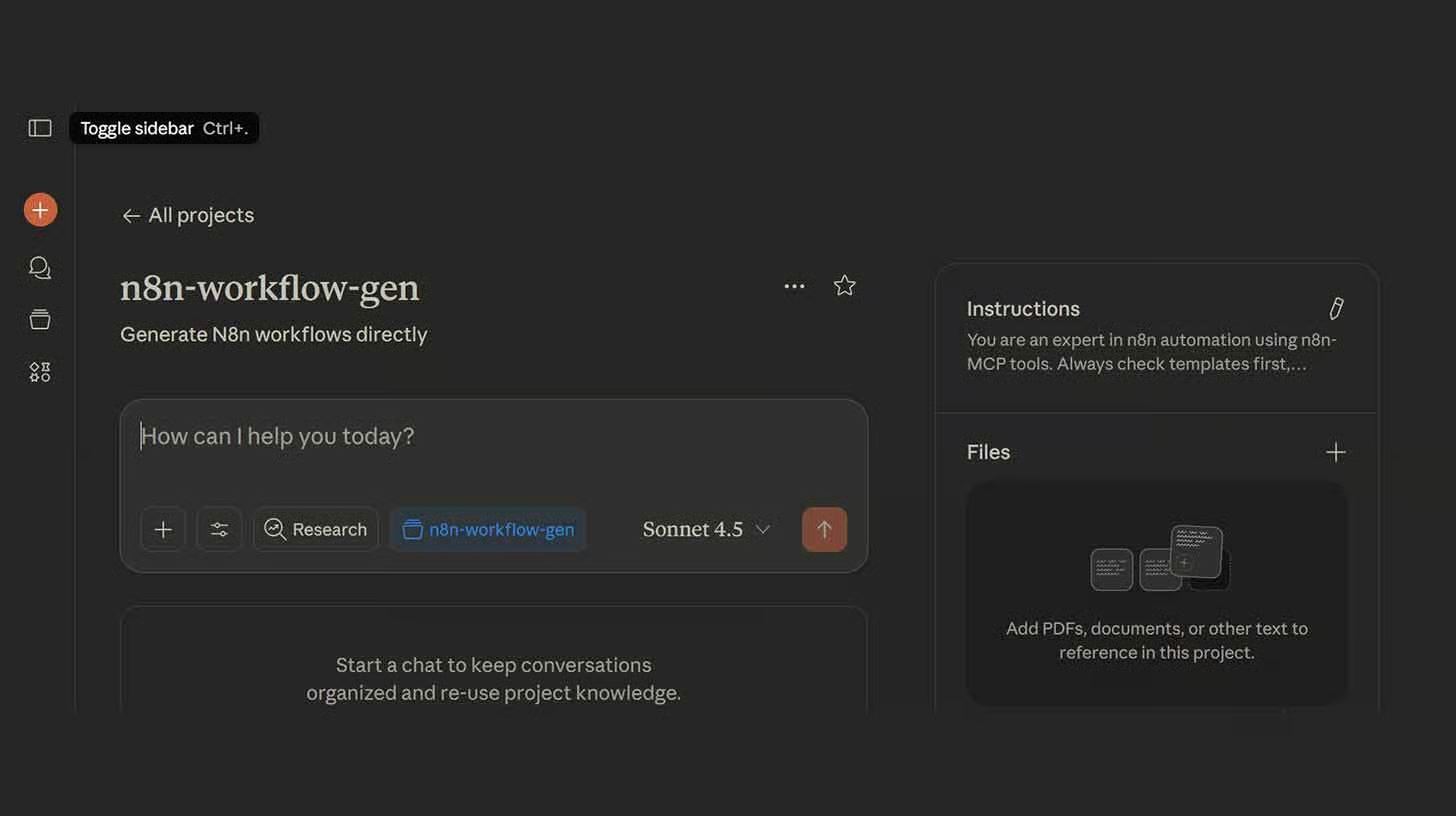
Steps to Create n8n Workflows Using Claude
1️⃣ Set Up Claude Desktop and Server Requirements:
Begin by installing Claude Desktop and Node.js on your device. Once your environment is ready, open your terminal and run: npx n8n-mcpThis command launches the MCP server that enables Claude to communicate with your n8n instance.
2️⃣ Connect Claude to Your n8n Workspace:
Open Claude Desktop and navigate to Settings, then Developer, and select Edit Config. Paste in the configuration snippet provided by the n8n integration guide. Add two important details: • Your n8n URL (found in your workflow dashboard) • Your n8n API Key (located at Settings → n8n API → Create API Key)
3️⃣ Enable MCP Tools Inside Claude:
Restart Claude Desktop so it loads your new configuration. Click the n8n MCP icon in the bottom-right corner and select Enable all tools. This activates Claude’s ability to build workflows directly inside your n8n environment.
4️⃣ Describe Your Automation in Plain English:
Now comes the fun part. Simply tell Claude what you want to automate.Example:“Build an n8n workflow that monitors Gmail for emails containing ‘invoice’ in the subject, extracts the invoice amount using AI, and logs it to Google Sheets.”
Claude will handle the logic, structure, and node setup automatically.
The Takeaway
Claude turns natural language into fully functioning n8n automations. With clear instructions and specific prompts, you can build advanced workflows quickly, without ever touching a node. Dive in and streamline your systems with ease!
We'd love to hear your feedback on today's issue! Simply reply to this email and share your thoughts on how we can improve our content and format.
Have a great day, and we'll be back again with more such content 😍